Forms
You need to create a form to collect subscribers. You can create as many forms as you want, design it as you want, each form can be used in different places. By default, we provide you a simple form that you can customize:
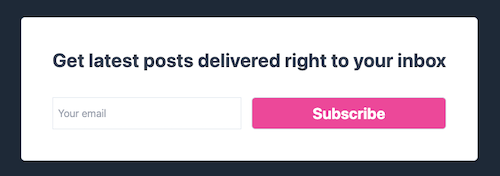
But what if you want to build your own form? Let's see how you can do it.
How to create your own form
First, you need to go to the Forms section in your dashboard. Then, select your campaign if you have more than one.
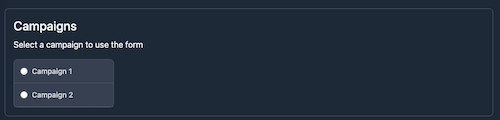
Below the campaigns, you'll have two URLs, both unique to your campaign:
| URL | Usage |
|---|---|
https://broadcast.hakanai.io/campaign/YOUR_CAMPAIGN_ID/subscribe | Plain HTML form. The visitor lands on a Hakanai confirmation page after the submit. |
https://broadcast.hakanai.io/api/campaign/YOUR_CAMPAIGN_ID/subscribe | API endpoint returning JSON. The visitor stays on your website. |
In both cases the email address must be sent as a query parameter named email.
Here is an example of a very basic form:
<form action="https://broadcast.hakanai.io/campaign/YOUR_CAMPAIGN_ID/subscribe" method="get">
    <input type="email" name="email" placeholder="Your email" required>
    <button type="submit">Subscribe</button>
</form>
The form uses method="get" so that the browser appends ?email=... to the URL. A plain HTML form with method="post" would send the email in the request body, which is not read by the endpoint.
Advanced usage: keep your user on your website (for advanced users)
By default, the form will redirect the user to the Hakanai website.
But you can avoid that and use a bit of javascript to keep the user on your website.
This is where you use the API URL, the one containing /api.
The endpoint accepts both GET and POST, as long as the email is passed in the query string.
Here is an example of a form that will keep the user on your website:
<form action="https://broadcast.hakanai.io/api/campaign/YOUR_CAMPAIGN_ID/subscribe" method="get" id="newsletterHakanai">
    <input type="email" name="email" placeholder="Your email" required>
    <button type="submit">Subscribe</button>
</form>

<script>
document.getElementById('newsletterHakanai').addEventListener('submit', function(event) {
    event.preventDefault(); // Prevent the form from submitting the default way

    var email = document.querySelector('input[name="email"]').value;
    var actionUrl = this.action;

    fetch(`${actionUrl}?email=${encodeURIComponent(email)}`, {
        method: 'POST'
    })
    .then(response => response.json())
    .then(data => {
        console.log('Success:', data);
        // You can add more actions here, such as showing a success message to the user
    })
    .catch(error => {
        console.error('Error:', error);
        // You can add error handling here
    });
});
</script>
Responses
| Status | Meaning |
|---|---|
200 | The subscriber has been registered. A confirmation email is sent, see double opt-in. |
400 | The email parameter is missing or invalid, or the address is already subscribed to this campaign. |
404 | No campaign matches the id in the URL. |